Short answer: Let an AI note taker record and summarize your calls, then check every summary yourself before you share it. Fathom’s free plan, which lists unlimited recordings and transcriptions, is enough for most people to start, and you only need to pay once a free limit actually gets in your way. Paste the reviewed notes into a chat assistant with the prompts below to get action items and a recap email.
This guide is for anyone who spends hours a week in calls and wants notes without typing during them. Our only hands-on test so far is one short Fireflies Free test on 2026-11-14, noted where we use it. We haven’t tested Fathom or Otter, so the other tool details below come from each vendor’s official pricing and help pages. Last checked: 2026-11.
An AI note taker records a meeting, writes a transcript (the word-for-word text of the call) and summarizes it. Treat the summary as a first draft, not the final record.
Step 1: Choose a note taker
Your choice depends on two things: how long your meetings run and whether you’ll pay. Prices and limits below are from each official pricing page. Last checked: 2026-11.
| Tool | Free plan limit | Cheapest paid plan |
|---|---|---|
| Fathom | Unlimited recordings and transcriptions | Premium $20/mo ($16/mo yearly) |
| Fireflies | Disputed: the pricing card says unlimited transcription, the help center says 3 meetings unless auto-join is on; storage is listed as 400 min per team on one page and per seat on others | Pro $18/seat/mo ($10/seat/mo yearly) |
| Otter | 300 min/mo, 30 min per conversation | Pro $16.99/user/mo ($8.33/user/mo yearly) |
If your meetings run past 30 minutes and you won’t pay, Otter’s free plan won’t cover a full call. If you’re one person who wants the lowest yearly price, that’s Otter Pro. If your team wants a shared library, Fireflies Pro is $10 per seat (each teammate in your workspace) billed yearly.
Fireflies’ own pages disagree on several free-plan limits. Our Otter vs Fireflies vs Fathom comparison lists each conflict side by side, along with the full price table.
Step 2: Set your consent routine
A note taker records other people, so decide how you’ll tell them. The simplest habit is one sentence at the start of every call.
Quick note: I'm using an AI note taker to record and summarize this call.
Let me know if you'd prefer I turn it off.
Some places require consent from everyone on the call. Follow your company’s policy, and turn the tool off when someone asks.
Step 3: Connect your calendar and meeting app
Most note takers ask for calendar access and then join meetings as a bot (an extra participant the tool adds to your call so it can record). Otter lists Zoom, Microsoft Teams and Google Meet support on its free plan.
If you’d rather not have a bot join, check the bot-free options. Fathom lists bot-free capture in beta on Mac. Fireflies’ help center says its Chrome extension records Google Meet calls without a bot.
Start with auto-join (the setting that lets the tool join calendar meetings on its own) off, or limited to the meeting types you actually want recorded, such as internal standups or client calls where everyone has agreed.
One catch on Fireflies Free: its help center says turning auto-join on is what removes the cap on transcriptions for accounts created on or after September 1, 2026, and that with it off you get 3. One Fireflies FAQ adds that you also need to share recaps with all invitees. The pricing page’s Free card just says “Unlimited transcription*”, with an asterisk it doesn’t explain.
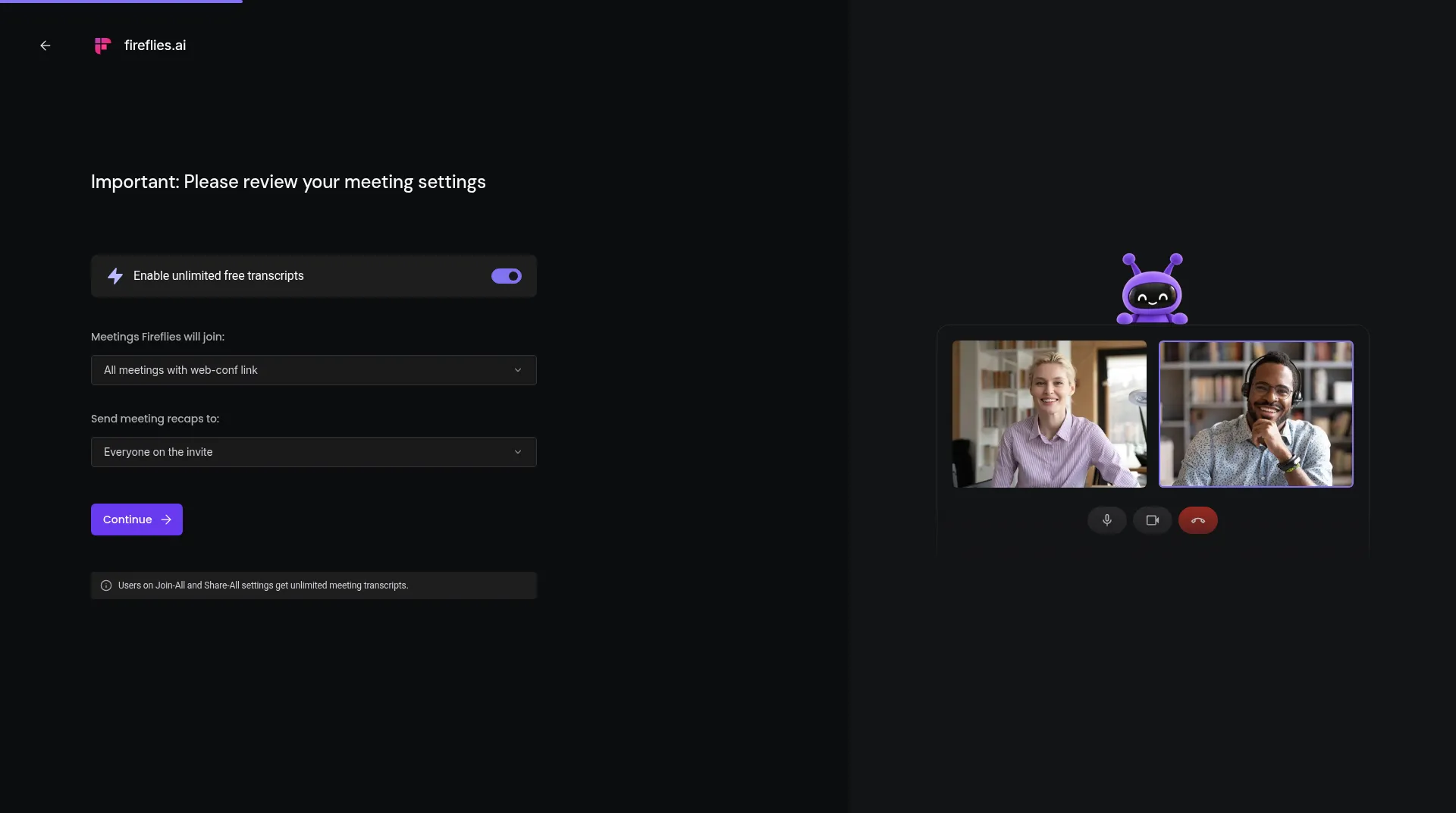
In our test, we only tried Fireflies for this step. On the Free plan on 2026-11-14, Fireflies’ setup screen had “Enable unlimited free transcripts” switched on by default, set to join “All meetings with web-conf link” and to send recaps to “Everyone on the invite.” A note under it said: “Users on Join-All and Share-All settings get unlimited meeting transcripts.” We turned it off, chose the option that joins only when you invite Fireflies’ bot yourself, and set recaps to “Only me.” The account menu then showed “3 left / 3 free meetings.” We didn’t invite the bot to a real meeting.
If you leave these defaults on, Fireflies joins every calendar meeting with a web-conference link and sends the recap to everyone on the invite, so check that before you click Continue.
Step 4: Prepare a one-line agenda
AI summarizes better when the meeting has a shape. Put a short agenda in the calendar invite or say it out loud at the start.
Agenda: 1) Status on the launch page 2) Budget for December ads 3) Who owns the FAQ updateSaying names and decisions clearly also helps. “Maria will send the draft by Friday” is easier for any transcript to capture than “I’ll get that over.”
Step 5: Review the summary within an hour
Open the summary soon after the call while you still remember what happened. Check three things:
- Names. Transcripts often misspell names and product terms.
- Numbers. Prices, dates and quantities are the costliest errors.
- Decisions. Make sure “we discussed X” isn’t written as “we decided X.”
Fix errors in the note itself so the shared version is correct. If the tool supports a custom vocabulary (a list of names and terms you teach it to spell correctly), add your team’s recurring terms.
Step 6: Turn notes into action items
Some paid plans add AI action items; Fathom lists them on Premium. You can also paste a transcript into a chat assistant such as ChatGPT, Claude or Gemini.
Here is a meeting transcript. List every action item as:
- Task — Owner — Due date (write "no date" if none was said)
Only include tasks someone explicitly agreed to. Do not invent owners or dates.
Then list open questions that still need a decision.

[paste transcript]
The last two lines of that prompt matter. They tell the model not to guess owners or deadlines that nobody said. Not sure which assistant to use? Our ChatGPT vs Claude vs Gemini comparison helps you choose one.
Before pasting a client transcript into any assistant, check your company’s data rules and the assistant’s privacy settings.
Step 7: Share and file the notes
Send a short recap, not the whole transcript. A few bullets get read; a long transcript usually doesn’t.
Write a recap email under 120 words from these notes.
Start with the decisions, then action items with owners, then the next meeting date.
Plain, friendly tone. No filler.

[paste reviewed notes]
File the full transcript where your team can search it later. Fireflies Pro, for example, lists 8,000 minutes of storage per seat, and Business lists unlimited storage. Fireflies’ help center says downloading transcripts needs Pro or higher. Last checked: 2026-11.
A weekly routine that keeps notes useful
Once the setup works, the habit matters more than the tool:
- Monday: check which calendar events have auto-join turned on. Remove any that shouldn’t be recorded.
- After each call: review the summary and send the recap within the hour.
- Friday: search the week’s transcripts for open action items, and move unfinished ones into your task list.
Each tool has a chat feature for asking questions about your meetings: Fathom lists Ask Fathom (not checked on Free in its comparison table, which shows an hourglass icon there), Fireflies lists AskFred (listed as “Limited” on Free, and it uses AI credits, Fireflies’ allowance for AI features), and Otter lists AI Chat on its free plan (the plan card says “within and across meetings,” while the comparison table caps Basic at 20 queries a month per user, 3 per conversation). Test the one you choose before relying on it.
A useful weekly prompt for any of them, or for a chat assistant with pasted notes:
From this week's meetings, list every action item that is still open.
Group by owner. Flag anything with a due date in the next 7 days.
Only use what is in the notes. Write "unclear" if an owner wasn't named.
In our test, we only tried Fireflies’ AskFred, on one uploaded meeting on the Free plan. We asked “What is the launch date and who owns the checklist?” and our test log records the reply as “Launch Date: December 1st” and “Checklist Owner: Bob is responsible for sending the final checklist by Friday.” Both answers fit our test script: Bob suggested launching on December first and Alice agreed, and Alice asked Bob to send the final checklist by Friday. Bob never confirms that task in the script, so “responsible” is AskFred’s wording. We didn’t test finding decisions across older meetings.
Which plan to upgrade to, and when
Stay on a free plan until a limit actually gets in your way. These are the usual triggers. Last checked: 2026-11.
- Your meetings run over 30 minutes on Otter. Otter Pro ($8.33/user/mo billed yearly) raises the cap to 90 minutes.
- Fireflies summaries feel too thin. Fireflies Pro ($10/seat/mo billed yearly) lists unlimited AI summaries. What Free includes depends on which Fireflies page you read.
- You want action items pulled automatically in Fathom. Fathom Premium ($16/mo billed yearly) adds AI action items.
- Your team wants shared notes. Fathom’s team plan is Team ($15/user/mo billed yearly, 2-user minimum). On Fireflies, Free and Pro offer public channels (shared meeting folders); private channels start at Business.
Try monthly billing first. All three offer yearly prices, but a month of real use tells you whether the tool fits your calls.
Whatever you choose, cancel unused trials and paid seats. A note taker nobody opens is still a monthly charge.
Common mistakes to avoid
- Sharing an unreviewed summary. One wrong number can cause more work than the notes saved.
- Recording everything by default. Auto-join on every calendar event can record calls that shouldn’t be recorded.
- Ignoring free-plan limits. Otter’s free plan stops at 30 minutes per conversation.
- Paying yearly too early. Use a tool for a month before committing to yearly billing.
Reuse your meeting notes
Good notes become content. A customer call can turn into an FAQ, and a team discussion can become a how-to post. Our guide on how to use AI to write a blog post shows that workflow step by step.
If you’ll edit those drafts heavily, AI writing tools for bloggers compares writing tools for that job.